Active Directory Setup & Connect Sync
Objective Link to heading
- Install and configure Active Directory Domain Services (AD DS) on a virtual machine.
- Configure the VM as a Domain Controller and a DNS Server.
- Join a client VM to the
logan.localdomain.
Why? Link to heading
- Educational purposes and for hands-on testing with Group Policy Objects (GPOs) and other AD administrative tasks.
Tasks Completed Link to heading
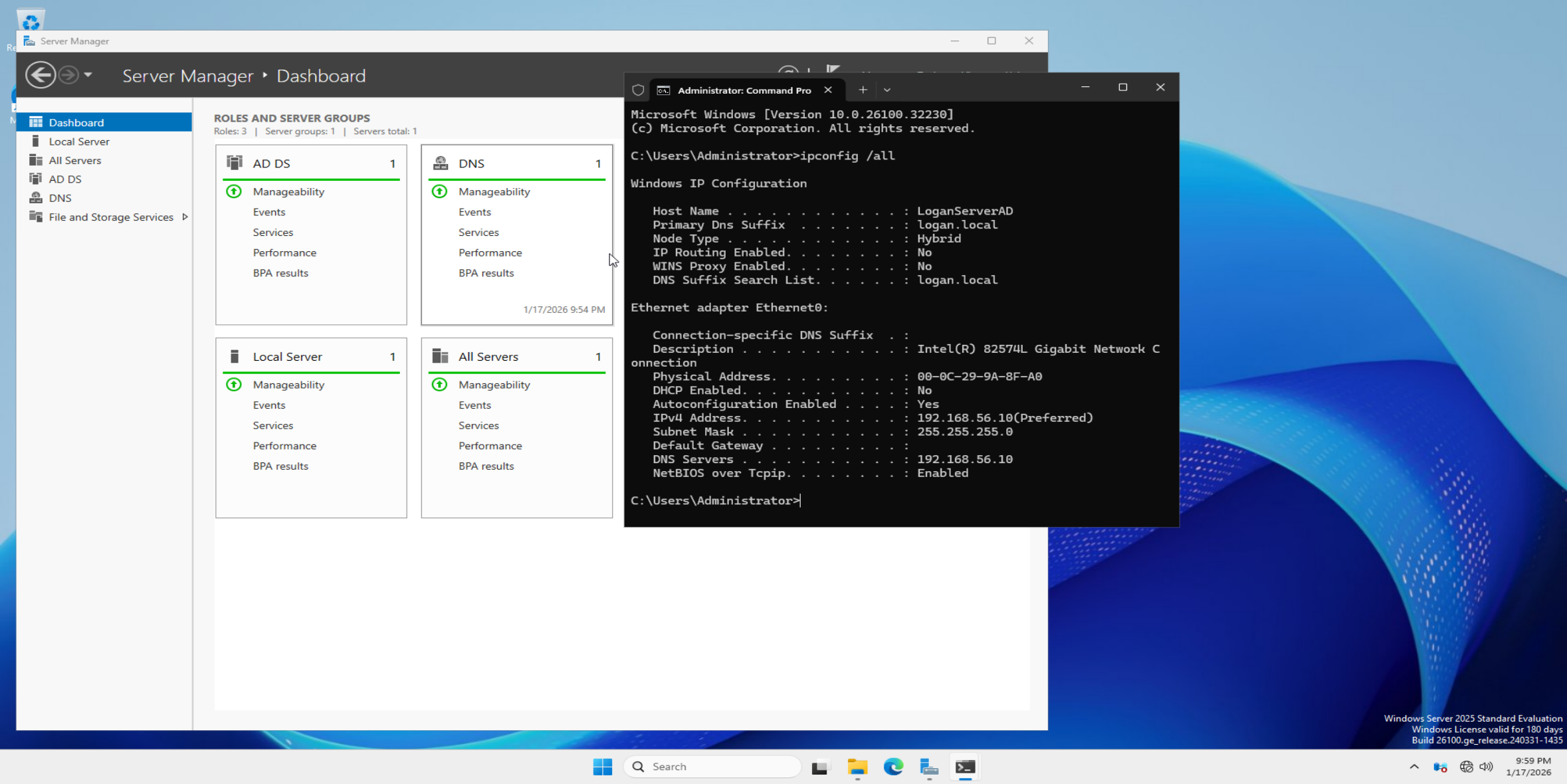
- Installation: Set up Windows Server 2025 Evaluation using VMware Workstation and installed AD DS and DNS tools.
- Maintenance: Installed all updates for both the client and server, utilizing snapshots throughout the process.
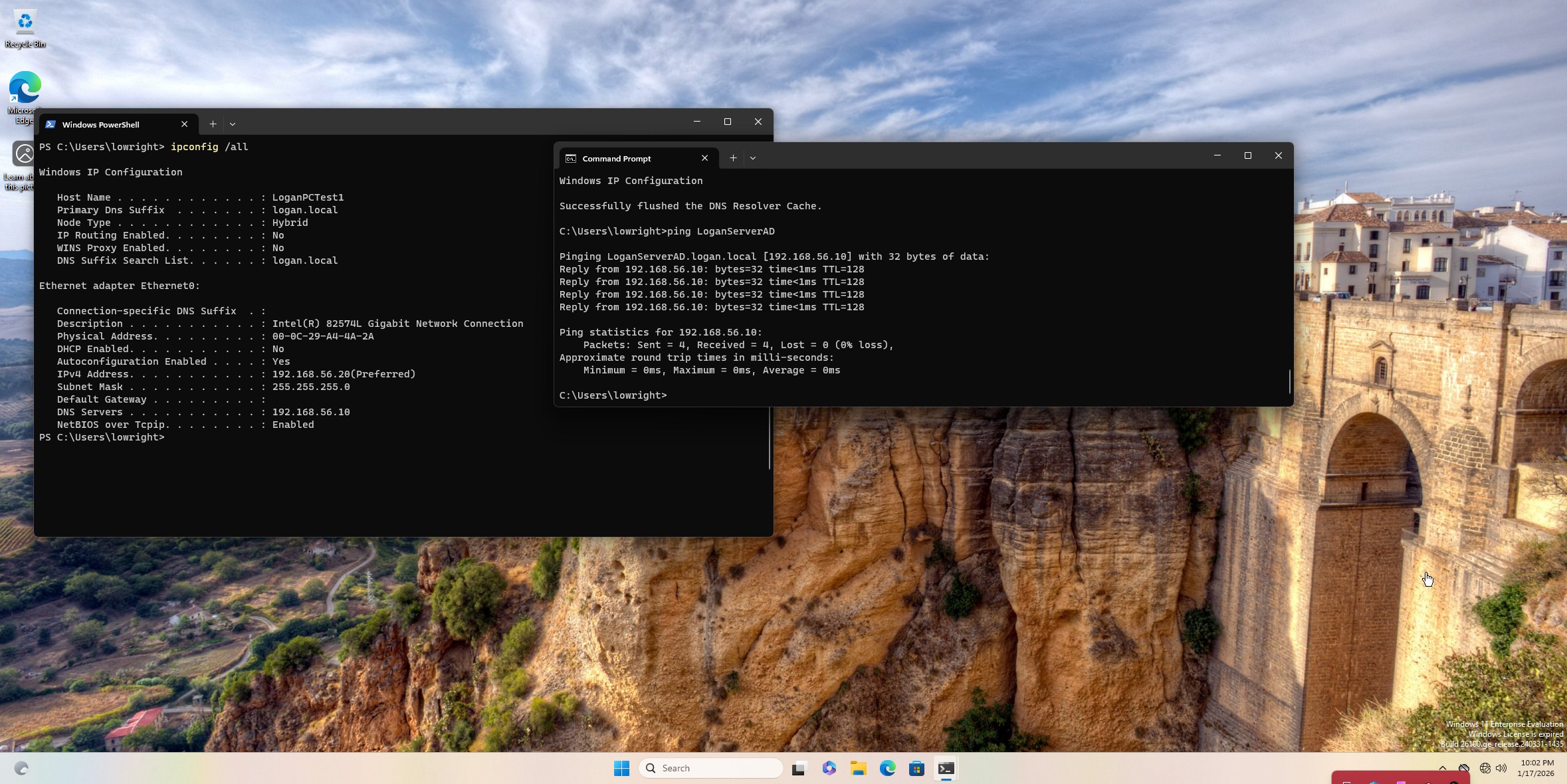
- Networking: Configured static IPv4 addresses and pointed the client to the server for DNS resolution.
- Verification: Tested connectivity between both machines using the
pingcommand. - Domain Join: Successfully joined a Windows 11 client VM to the domain using administrative credentials.
Issues Link to heading
- “WHEA_UNCORRECTABLE_ERROR” BSOD
- A known error that occurs when using NVMe virtual disks during Windows updates within VMware.
- See Troubleshooting Notes for the resolution.
Outcome Link to heading
- Successfully joined a Windows 11 client VM to the domain running Windows Server 2025.
- Gained experience in client-server communication and network configuration.
- Established a functional “homelab” for future projects involving Group Policy Objects (GPOs) and administrative management.
Images for project Link to heading
Show / hide images (Click to enlarge)
Where to go from here? Link to heading
I would like to further explore connecting on-premises infrastructure to the cloud using Microsoft Entra ID and Microsoft Entra Connect Sync. To begin this process, I purchased a Microsoft 365 Business Premium license.
Using this tenant, I created a @LoganITLearn.onmicrosoft.com domain and successfully installed the Connect Sync agent onto the domain controller.
I then created a test user, “Jerry Jones,” using Active Directory Users and Computers (ADUC). Once the account synced to Entra ID, I assigned licenses to both Jerry and myself. To verify the sync, I signed into Jerry’s account on a client VM and accessed the web version of Outlook. As shown in the images below, I successfully sent and received a test email.
Show / hide images (Click to enlarge)


Troubleshooting Notes Link to heading
After researching the BSOD error, I identified that VMware’s NVMe controller was the cause. I took the following steps to resolve it:
- Removed the NVMe Controller from the Server VM settings (while retaining the existing
.vmdkfiles). - Added a new virtual hard drive using the SATA controller.
- Attached the existing
.vmdkfiles to the SATA controller. - Successfully booted the server and completed the update/restart process without further crashes.